Your Computer Thinks Your Files Are Broken. It's Usually Wrong.

You're minding your own business, trying to open a Word doc or load up a spreadsheet you've had for years, and suddenly your computer hits you with a message: "This file is corrupt. Would you like to attempt a repair?" Your heart sinks. Your palms get a little sweaty. You start wondering if you just lost months of work.
Here's the thing: that message is frequently more bark than bite. Understanding why computers throw these warnings — and what they actually mean — can save you a lot of unnecessary panic, and keep you from downloading some sketchy "file repair" tool you found on page four of Google results.
What "File Corruption" Actually Means
At its core, a file is just a long string of ones and zeros stored on your drive. Every file format — whether it's a PDF, an Excel spreadsheet, or an MP4 video — has a specific structure. Think of it like a recipe: ingredients need to appear in a certain order, with specific amounts, or the dish doesn't work.
When your operating system or an application opens a file, it reads that structure and checks whether everything is where it's supposed to be. If something doesn't line up — even a single unexpected value in the wrong spot — the software may flag the file as damaged or unreadable.
That mismatch can happen for a lot of reasons. Some of them are serious. Most of them aren't.
The Boring (But Common) Reasons Files Get Flagged
The file didn't finish saving. This is probably the number one culprit. If your laptop lost power, your app crashed, or you yanked out a USB drive while a file was still being written, the saved version might be incomplete. The file exists, but it's missing its ending — like a book with the last chapter torn out. Your computer opens it, notices the structure cuts off unexpectedly, and throws up a warning.
Software version mismatches. Open an old .docx file in a brand-new version of Microsoft Word, or vice versa, and you might get a repair prompt. The file isn't broken — it just uses formatting or features that the current software version doesn't fully understand. The "repair" is really just Word smoothing over the incompatibilities.
Downloaded files that didn't fully transfer. Ever download something on a spotty Wi-Fi connection? Files that get interrupted mid-download can end up incomplete. Your browser saves what it got, but the file is essentially a puzzle with missing pieces.
Overzealous antivirus software. Security programs sometimes quarantine or partially block files they consider suspicious, which can leave a file in a weird in-between state — not fully accessible, not fully deleted. The result looks a lot like corruption even though the original file was perfectly fine.
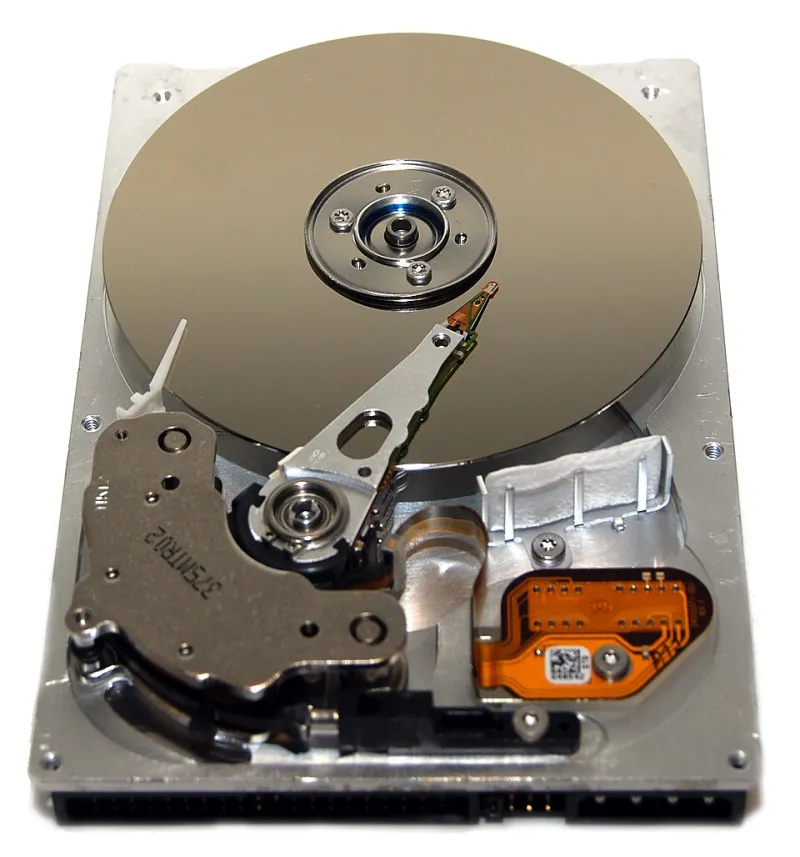
Drive errors. This is the one that's actually worth paying attention to. Hard drives and SSDs can develop bad sectors — tiny areas of storage that can no longer reliably hold data. If a file gets saved to one of those spots, parts of it can become unreadable over time. This is real corruption, and it can get worse if ignored.
So When Should You Actually Worry?
Here's a quick gut-check: Is this happening with just one file, or are you seeing errors across multiple files and programs?
If it's a single file acting up, the problem is almost certainly isolated. Try opening it on a different device or with a different app. If it opens fine elsewhere, your software or settings are the issue — not the file itself.
If you're seeing widespread errors — multiple files refusing to open, your system acting sluggish, programs crashing more than usual — that's a sign something deeper might be going on. It could be a failing drive, a problematic software update, or in rare cases, malware messing with your system.
Windows has a built-in tool called CHKDSK (Check Disk) that scans your drive for errors and attempts to fix them. On a Mac, Disk Utility does something similar. These are legitimate, free tools built right into your operating system. If you're genuinely concerned about your drive's health, start there — not with some random download promising to "fix all errors in one click."
The Sketchy Repair Tool Problem
This is worth its own section, because the file repair software industry is genuinely full of predatory garbage.
When you Google something like "fix corrupt Word file," you'll find dozens of tools that promise to recover your documents for free — right up until the point where they've "analyzed" your file and inform you that recovery will cost $49.99. Others are outright malware dressed up as helpful utilities.
The rule of thumb: if a repair tool showed up in a random Google ad, requires you to disable your antivirus to install it, or asks for payment before showing you any results, walk away.
For Microsoft Office files specifically, Word, Excel, and PowerPoint all have built-in repair options under File > Open > Browse, where you can select "Open and Repair" from the dropdown next to the Open button. For PDFs, Adobe Acrobat has its own recovery features. These first-party tools won't recover everything, but they're safe, free, and often surprisingly effective.
The Bigger Picture: File Health Is Preventable
Most file corruption is avoidable with a few basic habits:
- Don't pull out USB drives without ejecting them first. That little "eject" step isn't just a formality — it tells your system to finish writing any pending data before cutting the connection.
- Let your computer finish shutting down. Holding the power button to force a shutdown while files are open is one of the fastest ways to end up with a corrupted document.
- Keep backups. This sounds obvious, but most people don't do it until after they've lost something important. Cloud services like Google Drive or iCloud automatically sync your files and keep version histories, which means even if a file gets corrupted, you can often roll back to a healthy version from earlier in the day.
- Pay attention to your drive's age. Hard drives typically last three to five years. If yours is getting up there in age and you're suddenly seeing a lot of file errors, that's a signal worth taking seriously.
The Bottom Line
Your computer isn't always right when it tells you something is broken. A lot of "corrupt file" warnings are the digital equivalent of a car alarm going off because a truck drove by too fast — technically triggered by something, but not actually indicating danger.
That said, your computer isn't always wrong, either. The key is knowing how to read the situation: check whether the problem is isolated or widespread, use the built-in tools your operating system already gives you, and be deeply skeptical of any third-party software that shows up promising a miracle fix.
Files are tougher than they look. And now that you know what's actually going on under the hood, you don't have to panic every time your computer decides to be dramatic about it.