Your Phone Says the File Is Broken. Your Laptop Disagrees. Who's Right?
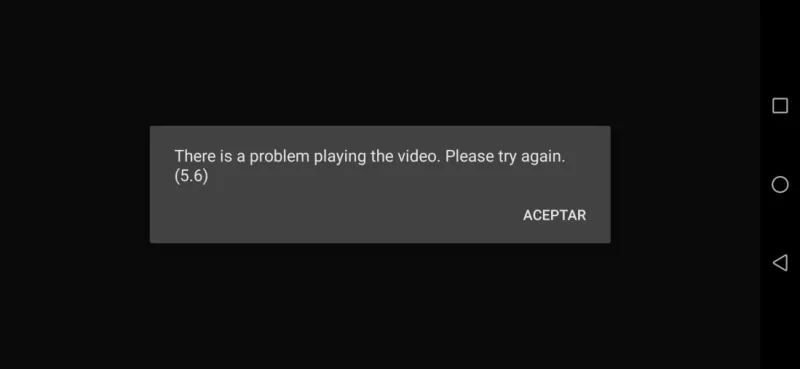
Photo: smartphone error message video file not playing frustrated person, via 4ddig.tenorshare.com
You shot a video at your cousin's wedding. You transferred it to your phone. You tap it, excited to relive the moment — and your phone throws up an error: "File is corrupted or unsupported."
But wait. You just played that exact file on your laptop ten minutes ago. It was fine. Crystal clear, actually.
So what gives? Is the file broken or not?
Here's the short answer: it's probably not broken at all. What you're running into is a compatibility gap — and it's one of the most misunderstood annoyances in everyday tech. Let's break it down.
"Corrupted" Doesn't Always Mean What You Think
When your phone says a file is corrupted, it's not always telling you the truth. Technically, a corrupted file is one where the actual data has been damaged — bits flipped, chunks missing, the file structure scrambled beyond recognition. That kind of corruption usually happens from interrupted transfers, failing storage, or power cuts mid-save.
But phones (and plenty of apps) use the word "corrupted" loosely. A lot of the time, what they really mean is: "I don't know how to read this." That's a very different problem, and it has a very different fix.
The Codec Problem Nobody Explains
Video files are basically containers. Think of a .mp4 file like a lunchbox — the lunchbox itself is just a box. What matters is what's inside: the actual video and audio data, which is compressed using something called a codec.
Common video codecs include H.264, H.265 (also called HEVC), VP9, and AV1. Your laptop might support all of them. Your phone? Depends on the model, the operating system version, and sometimes even which app you're using to play the file.
Here's a real-world example. iPhones shooting in the default HEVC format (H.265) produce files that older Android phones or budget devices simply can't decode — not because the file is damaged, but because the hardware or software doesn't have the right decoder installed. The phone hits a wall, can't make sense of the data, and calls it corrupted.
Same lunchbox. Different ability to open it.
Metadata Is Quietly Causing Chaos Too
Beyond codecs, there's another culprit: metadata. Every file carries a header — a small block of information at the start that tells any program trying to open it what it is, how it's structured, and how to begin reading it.
For video files, this header often includes things like resolution, frame rate, color profile, and the codec used. If that header gets even slightly out of spec — maybe because the file was created by an unusual camera, a third-party app, or got trimmed by a video editor — some apps will choke on it immediately.
Your laptop's media player might be flexible enough to skip past a weird header and just play the file anyway. A mobile app with stricter parsing rules? It hits that irregular header and gives up, slapping a "corrupted" label on the whole thing.
Why Devices Interpret Files So Differently
Here's the underlying truth: there is no universal agreement on exactly how every file format should be implemented. Standards exist — but they have wiggle room, optional features, and edge cases that different developers handle differently.
Microsoft's media player, Apple's QuickTime, VLC, and your phone's built-in gallery app are all reading the same files through different lenses. Some are strict. Some are forgiving. Some have access to a wide library of codec support. Others are stripped down to keep the app lightweight.
Add in the fact that Android alone runs on hundreds of different hardware configurations — each with its own GPU and media processing capabilities — and you start to see why the same file can behave differently across devices.
Practical Steps Before You Assume the Worst
So your phone is throwing a fit over a file your laptop loves. What do you actually do?
1. Try a different app first. This is the easiest fix. Download VLC for Android or iOS — it's free and it supports an enormous range of codecs. If VLC plays your file without issue, the problem was never the file. It was the original app.
2. Check the codec. On Windows, right-click the file, go to Properties, then the Details tab. You'll see the video codec listed. On Mac, open the file in QuickTime and hit Command+I. If you see HEVC or AV1, that's likely your culprit on older devices.
3. Convert the file.
Free tools like HandBrake let you convert video files to a more universally compatible format. H.264 encoded in an .mp4 container is about as universally supported as it gets right now. Transcoding your file takes a few minutes and can save a lot of headaches.
4. Re-transfer the file. If conversion doesn't help and multiple apps on multiple devices all refuse to play it, then consider that the transfer itself went wrong. Copy the file again from the original source and try once more.
5. Run a file integrity check. For the truly cautious, tools like MediaInfo (free, available on Windows and Mac) can scan a video file and tell you whether its structure is actually intact — no guessing required.
The Takeaway
Your phone is not always the most reliable narrator. When it tells you a file is corrupted, treat that as a starting point for investigation, not a final verdict. More often than not, what looks like damage is really just a compatibility mismatch — two pieces of technology that speak slightly different dialects of the same language.
Files are more resilient than error messages make them seem. A little troubleshooting goes a long way before you write off something as lost.