The Invisible Middleman: What's Really Happening Between Your Computer and Printer

You've got a deadline in ten minutes. You hit Ctrl+P, wait for the satisfying sound of paper feeding through rollers, and instead you get... nothing. Or worse — a cryptic error message that sounds like it was written by a robot having a bad day.
We've all been there. And the frustrating part is that your computer and your printer are both sitting right in front of you, looking perfectly fine, while silently refusing to cooperate with each other.
Here's the thing: printing isn't as simple as your computer just "sending a picture" of your document to the printer. There's a whole translation process happening in the background, and when any part of that process breaks down, the result is confusion for everyone — especially you.
Your Printer Doesn't Speak Your Document's Language
Let's start with the basics. Your Word document, your PDF, your spreadsheet — these files are written in their own specific formats. Microsoft Word uses .docx. Adobe uses .pdf. Neither of those formats means anything to your printer on its own.
Printers speak a completely different language. Most modern printers understand one of a handful of page description languages — the most common being PostScript and PCL (Printer Command Language). These are low-level instruction sets that tell the printer things like: draw a line here, place this character at these coordinates, fill this box with this shade of gray.
So before a single drop of ink hits the page, your computer has to translate your document from its native format into something the printer actually understands. That translation job belongs to a piece of software called a printer driver.
The Driver Is the Translator — And Translators Make Mistakes
A printer driver is essentially a small program that sits between your operating system and your printer hardware. Its whole job is to act as an interpreter: take whatever you want to print, convert it into a format the printer can process, and pass it along.
When the driver is working correctly, this all happens invisibly in a fraction of a second. But drivers can go wrong in a surprising number of ways:
- Outdated drivers may not know how to handle newer file formats or features.
- Corrupt driver files can cause the translation to fail partway through.
- Mismatched drivers — like using a driver written for a slightly different printer model — can produce garbled output or flat-out errors.
This is why one of the most common (and genuinely useful) pieces of tech support advice is "update your printer driver." It's not just a throwaway suggestion — it's addressing the actual source of the problem.
The Spooler: Your Print Job's Waiting Room
Here's another layer most people don't know about: the print spooler.
When you send something to print, your computer doesn't beam it directly to the printer in real time. Instead, it drops the converted print job into a queue — a temporary holding area managed by a background process called the print spooler. The spooler then feeds jobs to the printer one at a time, in order.
This is why you can send multiple documents to print and walk away. The spooler handles the lineup.
But the spooler can also be the source of some of the most maddening printer problems. Jobs can get stuck in the queue — sometimes invisibly — blocking everything that comes after them. Your printer looks idle, your document won't print, and there's no obvious reason why. The fix is usually to manually clear the spooler queue, which requires digging into Windows Services or using a workaround on Mac. Not exactly beginner-friendly.
Why PDFs and Word Docs Behave Differently
Not all file formats are equally printer-friendly, and this is where things get interesting.
PDFs were literally designed with printing in mind. The format — created by Adobe back in the early '90s — is essentially a portable, self-contained version of a PostScript document. It already describes the page in a way that's close to what printers understand. That's why PDFs tend to print reliably and look exactly the same on every device.
Word documents, on the other hand, are designed for editing, not printing. They use a layout system that's flexible and responsive — text reflows, margins shift, fonts substitute when the original isn't available. When you print a Word doc, the driver has to make a lot of judgment calls about how to render it. If your printer doesn't have access to a font used in the document, it'll substitute something else, which can throw off spacing and cause text to overflow or get cut off.
Spreadsheets are arguably worse. Excel files aren't built around the concept of "pages" at all — they're infinite grids. Getting a spreadsheet to print correctly is almost a separate skill set, which is why "printing from Excel" is basically its own tech support category.
What Those Error Messages Are Actually Telling You
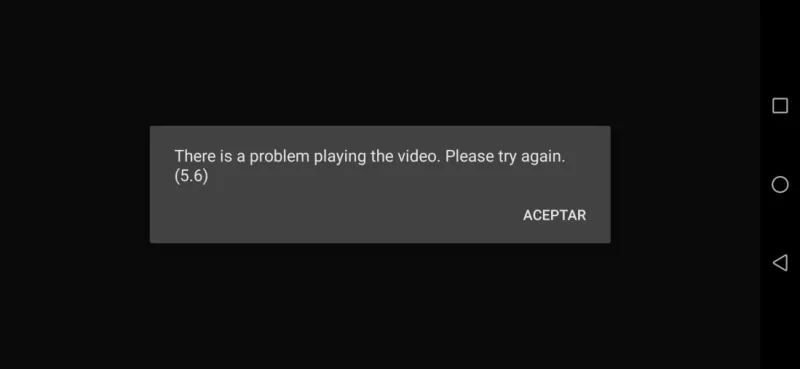
Let's decode some of the most common printer error messages, because most of them are less mysterious than they seem:
"Driver unavailable" — Your computer can't find a working driver for the printer. This usually means the driver isn't installed, got corrupted, or the printer isn't connected properly.
"Print job failed" — Something went wrong during the translation or spooling process. Could be a corrupt file, an unsupported format, or a spooler hiccup.
"Printer not responding" — The computer sent the job, but the printer never acknowledged it. Check the physical connection first (USB or network), then the spooler.
"Insufficient memory" — This one surprises people, but printers have their own onboard memory. Complex documents with lots of high-resolution images can exceed it. Lowering the print quality or breaking the job into smaller chunks often helps.
"Unable to print [filename]" — The application couldn't hand the file off to the driver. Sometimes this is a permissions issue; sometimes the file itself is damaged.
The Easiest Fix You're Probably Not Using
If you're regularly running into printing problems with a specific file type, there's a simple workaround that sidesteps most of the translation drama: convert everything to PDF before printing.
Since PDFs are already close to a printer-ready format, they tend to bypass a lot of the conversion headaches. Most applications have a "Save as PDF" or "Export to PDF" option built right in. On Windows, you can even use "Print to PDF" as a printer option — which saves a PDF instead of printing, and then you print from that.
It's an extra step, but if you're dealing with a stubborn document that refuses to cooperate, it's often the fastest path to actually getting paper in your hands.
Printing Is Older Than the Internet — And It Shows
Here's the honest truth: the printing ecosystem is built on decades of layered technology. PostScript dates back to 1984. PCL is even older. The core architecture of how computers talk to printers hasn't changed dramatically since most of us were kids.
That legacy is both a strength and a weakness. It means your 2024 laptop can often talk to a printer from 2005 with the right driver. But it also means the whole system carries a lot of old baggage — quirks, edge cases, and failure modes that were baked in long before anyone anticipated the file formats we use today.
So the next time your printer stares back at you in silent defiance, cut yourself some slack. You're not doing anything wrong. You're just navigating a translation chain that's been duct-taped together across four decades of computing history.