Why the Same Video File Plays Perfectly on Your Phone and Freezes on Your TV
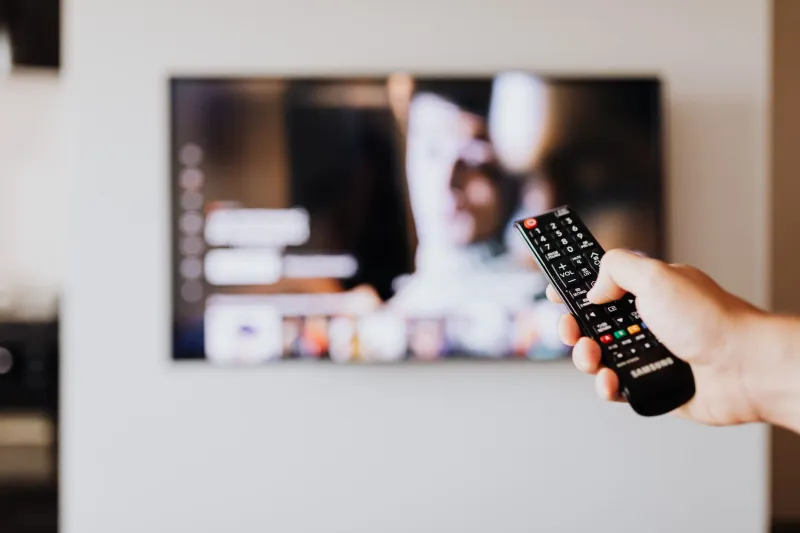
You did everything right. You downloaded the movie, copied it to your USB drive, plugged it into your smart TV, and got... nothing. A spinning wheel, maybe. Or a cold, indifferent black screen. Meanwhile, that exact same file plays without a hiccup on your laptop and your phone.
This is one of the most common tech frustrations people run into, and it almost never has a simple answer. What's actually going on is buried deep inside the file itself — inside something called a codec — and the story of why devices disagree about it is equal parts technical and surprisingly political.
What's Actually Inside a Video File
When most people think of a video file, they picture the container: the .mp4, .mkv, or .mov at the end of the filename. But that container is really just a box. What matters is what's inside the box.
Every video file holds at least two separate streams of data: one for the picture and one for the audio. Each of those streams is compressed using a specific algorithm — that's your codec. The word itself is a mashup of "coder-decoder," which is exactly what it does: it encodes video into a compact format when you save it and decodes it back into moving images when you play it.
So when a device tries to open your video, it's actually doing two jobs at once. First, it reads the container format to figure out what's inside. Then it has to decode the actual video and audio streams. If it can handle the container but not the codec inside? Black screen.
The Big Three Codecs You've Probably Never Heard Of
H.264 is the one that's basically everywhere. It's been around since the mid-2000s and it's the reason video streaming got practical in the first place. If you've ever watched anything on YouTube, Netflix, or your phone's camera roll, there's a very good chance H.264 was involved. Almost every device on the planet supports it, which makes it the safe bet for files you want to share.
H.265 (also called HEVC) is the newer, smarter sibling. It delivers the same quality as H.264 at roughly half the file size — a huge deal when you're talking about 4K footage. The catch? It's not universally supported. Some older TVs and budget streaming sticks can't handle it at all. And even when hardware supports H.265 in theory, there's a separate issue: licensing fees. Companies have to pay to include H.265 decoding, and some manufacturers quietly skip it to cut costs.
VP9 is Google's answer to the licensing problem. It's royalty-free, which is why YouTube leans on it heavily. It's solid technology, but its hardware support is spottier than H.264, especially on TVs and older media players.
There's also AV1, the new kid that everyone in the industry is betting on. It's open, royalty-free, and more efficient than all three of the above. Streaming giants like Netflix and YouTube are already using it. Your 2024 phone probably supports it. Your TV from 2019 almost certainly doesn't.
Why Your TV Is the Weak Link
Here's the part that surprises most people: your phone is a more capable video player than your TV.
Smartphones get software updates constantly. The apps on them — YouTube, VLC, Plex — bundle their own decoder libraries and update them regularly. Your TV's firmware, on the other hand, might not have been updated in two years. The built-in media player is often bare-bones, designed to handle the most common scenarios and nothing else.
Streaming apps on your TV sidestep this because they handle decoding on their end before sending video to your screen. But if you're plugging in a USB drive and using the TV's native player? You're at the mercy of whatever codecs the manufacturer decided to support back when they shipped the device.
This is also why the same TV might play one H.265 file fine and choke on another. Resolution, bitrate, and specific encoding profiles all matter. A 4K H.265 file encoded at a high bitrate can overwhelm hardware that technically "supports" the codec.
The Container Confusion
The container format adds another wrinkle. An .mp4 file can hold H.264, H.265, or even AV1 video. An .mkv (Matroska) file can hold almost anything. This is why looking at the file extension alone tells you almost nothing about whether a device can play it.
MKV files are especially common with downloaded movies because the format is flexible and supports features like multiple audio tracks and subtitles. But MKV support on TVs is inconsistent. Some handle it great. Others refuse to touch it. The TV isn't broken — it just never promised to speak MKV.
Practical Tips for Files That Actually Travel Well
If you want a video to play reliably across your phone, laptop, and TV without drama, here's what actually works:
Stick with H.264 inside an MP4 container. It's not the most efficient, but it's the most compatible format on the planet. If you're converting files, this is your safest output choice.
Use VLC on your laptop and phone. VLC is a free media player that bundles essentially every codec ever invented. It'll play things your TV won't even attempt.
Check your TV's specs before assuming it can't play something. Most manufacturer support pages list supported codecs and containers. It takes five minutes and can save a lot of frustration.
For 4K content, check specifically for H.265/HEVC support. Don't assume. Look it up for your specific TV model.
Consider a streaming stick. A Roku, Fire TV Stick, or Apple TV gets software updates and handles a much wider range of formats than most built-in TV players. They're cheap, and they essentially replace your TV's native player with something far more capable.
The Bigger Picture
The codec mess isn't an accident or a bug — it's the result of decades of competing companies, licensing disputes, and manufacturers making cost-cutting decisions consumers never see. Every time you hit a black screen, you're bumping into the invisible consequences of those choices.
The good news is that the industry is slowly converging on AV1 as a universal standard. In a few years, most of this friction should fade. Until then, knowing what's actually inside your video file is the fastest way to stop blaming yourself — and start blaming the right culprit.