The Junk Drawer Your Computer Has Been Filling for Years — And How to Finally Empty It
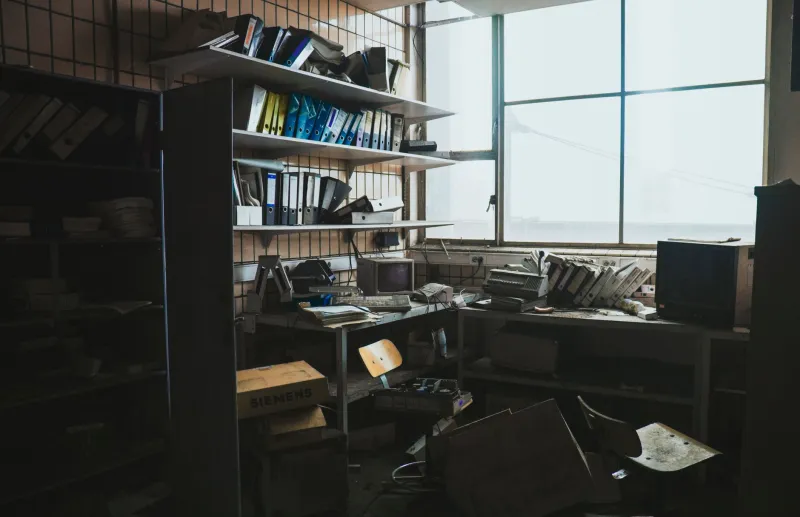
Every house has a junk drawer. You know the one — full of dead batteries, mystery cables, and takeout menus from restaurants that closed in 2017. Your computer has the same thing, except it's invisible and it's been filling up since the day you first turned the machine on.
These are temporary files, and they're everywhere. They live in folders with names like %temp% and .cache and AppData\Local\Temp. They were created with good intentions — to speed things up, save your work in progress, help apps run smoother. But "temporary" turned out to be a pretty loose definition, and a lot of these files never actually left.
What Temp Files Are Supposed to Do
When a program needs to do something complex, it often creates a scratch file to work in. Think of it like pulling out a notepad to do math before writing the final answer. An app might unpack a compressed update into a temp folder, write a recovery draft of your document in case of a crash, or store a chunk of downloaded data while it figures out where to put it permanently.
The plan is always the same: use the file, then delete it when you're done. Simple.
Except apps crash. Updates get interrupted. Programs assume another process will clean up after them, and that process never runs. Over time, those scratch files pile up into something genuinely massive. It's not unusual for a computer that's been in use for a couple of years to have several gigabytes of temp files that serve absolutely no purpose anymore.
Where They're All Hiding on Windows
Windows is especially enthusiastic about creating temp files and especially relaxed about deleting them.
The main location is C:\Users\[YourName]\AppData\Local\Temp. You can get there fast by pressing Windows key + R, typing %temp%, and hitting Enter. What you'll find might shock you — hundreds or even thousands of files and folders, some with cryptic names, some timestamped years ago.
There's also a system-level temp folder at C:\Windows\Temp, which stores files created by Windows itself and system processes rather than your personal apps.
Beyond those two, Windows keeps a Prefetch folder (C:\Windows\Prefetch) full of files that help programs launch faster, a WinSxS folder that holds backup copies of system components, and software-specific caches scattered throughout AppData. Your browser alone might have hundreds of megabytes tucked away in its own cache folder.
The Mac Version of the Same Problem
Mac users aren't off the hook. macOS stores user-level caches in ~/Library/Caches — that tilde means your home folder, which the system hides by default. You can get there by opening Finder, clicking Go in the menu bar, holding Option, and selecting Library.
Inside, you'll find folders for every app that has ever decided to cache something. Browsers, music apps, creative software — they all stake out territory here. There's also a system-level cache at /Library/Caches that requires admin access.
Mac temp files live in /private/var/folders, which is a maze of randomly named directories that even experienced Mac users rarely visit. The operating system manages this area more aggressively than Windows does, but it's not perfect.
Browser Caches: The Sneaky Space Hogs
Your browser deserves special attention because it's almost certainly the biggest offender on your machine.
Every time you visit a website, your browser saves copies of images, scripts, fonts, and other assets locally so the page loads faster next time. That's the cache, and it's genuinely useful. But it also grows without a ceiling unless you set one.
Chrome stores its cache in AppData\Local\Google\Chrome\User Data\Default\Cache on Windows. Firefox has its own equivalent. Safari on Mac stores cache data in ~/Library/Caches/com.apple.Safari. These folders can easily balloon to a gigabyte or more on a machine that gets regular use.
Why Your Computer Won't Delete Some of Them
Here's where it gets annoying. You open the temp folder, select everything, hit Delete — and Windows throws up errors on a bunch of files, refusing to remove them.
That happens because some temp files are actively in use. If an app is running, its temp files are locked. Windows won't let you delete a file that a running process has an open handle to, which is a sensible rule even if the timing feels terrible.
The fix is to close the relevant apps first, or to run the cleanup after a restart before too many processes spin up. You can also use Windows' built-in Disk Cleanup tool (search for it in the Start menu), which is smarter about skipping locked files without throwing errors at you.
Storage Sense is the more modern option. Find it under Settings > System > Storage. You can configure it to automatically delete temp files and empty the Recycle Bin on a schedule, which means you never have to think about it again.
How to Clean Up Safely Without Breaking Anything
The most important rule: don't touch the WinSxS folder. It looks enormous — sometimes 10GB or more — but Windows needs it for updates and rollbacks. Deleting things from it manually is a reliable way to destabilize your system.
For everything else in the standard temp folders, you're generally safe. Those files exist precisely because they were supposed to be disposable. The worst realistic outcome of deleting a legitimate temp file is that an app has to recreate it, which might add a second or two to that app's next launch.
Here's a safe routine that works on Windows:
- Press Windows + R, type
%temp%, hit Enter, select all, delete (skip any locked files) - Open Disk Cleanup and check every box except "Windows ESD Installation Files" if you see it
- Clear your browser cache through the browser's settings menu
- Turn on Storage Sense so this runs automatically going forward
On Mac, a free tool like OnyX or CleanMyMac handles this more gracefully than doing it manually, since macOS makes its cache folders intentionally hard to reach.
The Bottom Line
Temp files aren't a conspiracy — they're a byproduct of how software works. Every app creates them with the best intentions. The problem is that "temporary" requires follow-through, and follow-through requires that everything goes exactly as planned. It rarely does.
The good news is that cleaning them up is one of the lowest-risk maintenance tasks you can do on a computer. You're not touching anything important. You're just finally taking out trash that should have left a long time ago.