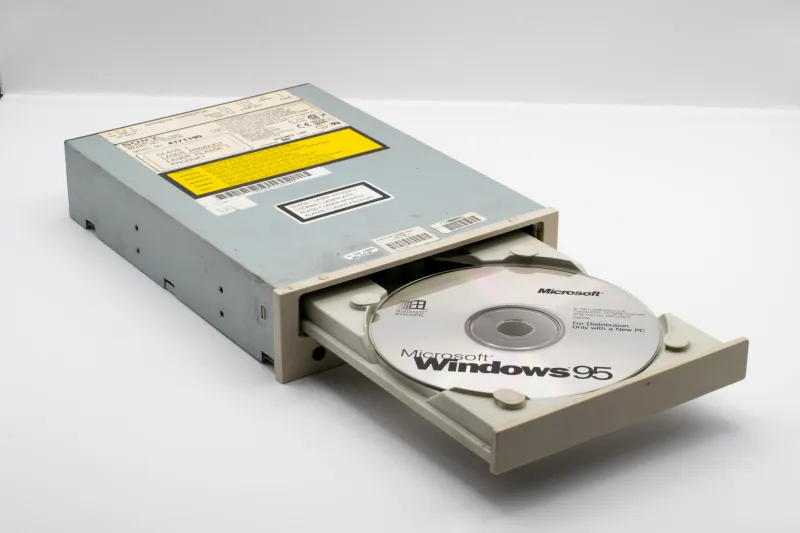
Meet the Secret Files Actually Running Your PC Right Now
The Files You Never Knew You Had
Open up File Explorer on a Windows PC and take a look around. You'll see your documents, your downloads, maybe a folder of vacation photos from 2019 that you keep meaning to organize. What you won't see — at least not by default — is the army of hidden files quietly keeping your entire system running.
Windows hides these files on purpose. Microsoft figured, reasonably enough, that most people don't need to see them and might accidentally delete something important if they could. But understanding what these files actually do gives you a huge leg up when something breaks, when your computer starts acting weird, or when a sketchy file shows up somewhere it shouldn't be.
Let's pull back the curtain on three of the most important behind-the-scenes file types: .dll, .sys, and .ini.
DLL Files: The Shared Building Blocks of Your Software
What they are: DLL stands for Dynamic Link Library. Think of a DLL file as a toolbox that multiple programs can share. Instead of every application building its own set of tools from scratch, they reach into a shared DLL and borrow what they need.
A real-world analogy: Imagine a commercial kitchen where every chef on the line shares the same set of knives, pans, and spice rack. Nobody brings their own equipment — they pull from the shared supply. DLL files work the same way for software. A DLL might contain code for displaying images, connecting to the internet, or processing audio. Any program that needs those functions can use the same DLL instead of reinventing the wheel.
Why this matters for you: This system saves disk space and memory — your computer isn't running fifty separate copies of the same code. But it also creates a famous point of failure known as "DLL Hell." When one program installs a new version of a shared DLL, it can accidentally break another program that was depending on the old version. If you've ever seen an error message like "MSVCP140.dll is missing" or "xinput1_3.dll not found," you've met DLL Hell firsthand.
Where to find them: DLL files live mostly in C:\Windows\System32 and inside individual program folders. They have the .dll extension, and Windows hides them from casual browsing by default.
Red flag to watch for: If a random DLL file shows up in an unusual location — like your Downloads folder or your Desktop — treat it with suspicion. Malware frequently disguises itself as legitimate DLL files to sneak past security software.
SYS Files: The Low-Level Muscle of Your Operating System
What they are: SYS files are system driver files, and they operate at a level so deep in your computer that most software can't even touch them. Drivers are the translators between Windows and your physical hardware — your graphics card, your printer, your keyboard, your Wi-Fi adapter. SYS files are how those translations happen.
A real-world analogy: Imagine you're visiting a country where you don't speak the language. A translator stands between you and the locals, converting everything in both directions. Your SYS files are those translators — sitting between Windows and your hardware, making sure each side understands the other.
Why this matters for you: When a SYS file gets corrupted or goes missing, the consequences can be severe. Driver failures are one of the leading causes of the dreaded Blue Screen of Death (BSOD) — that blue crash screen that sends most people into a panic. If your computer keeps crashing, a damaged or outdated SYS file is a very common culprit.
Where to find them: Most SYS files live in C:\Windows\System32\drivers. You can also view your installed drivers through Device Manager (right-click the Start button and select it from the menu).
Practical tip: Windows Update regularly pushes driver updates, which replace old SYS files with newer versions. Keeping Windows updated is one of the easiest ways to prevent SYS-related crashes. If you're having hardware problems, checking Device Manager for warning icons (yellow exclamation marks) is a solid first step.
INI Files: Old-School Settings That Refuse to Retire
What they are: INI stands for initialization, and these are plain-text configuration files that store settings for programs. They're one of the oldest file types still in regular use on Windows — dating back to the earliest days of the operating system.
A real-world analogy: An INI file is basically a sticky note that a program reads before it starts up. It might say things like "open in dark mode," "remember the last folder the user opened," or "connect to this server address." Simple, readable instructions written in plain text.
Why this matters for you: Unlike the complex binary files that most modern software uses to store settings, INI files are human-readable. You can open one in Notepad and actually understand what it says. This makes them surprisingly useful for troubleshooting — if a program is behaving strangely, sometimes you can open its INI file, spot a weird setting, and fix it manually.
Where to find them: INI files are scattered throughout your system — inside program folders, in C:\Windows, and sometimes in your user profile directory. Common examples include win.ini and system.ini in the Windows folder, which are holdovers from the Windows 3.1 era that Microsoft keeps around for compatibility reasons.
Modern replacement: Windows now uses the Registry — a massive centralized database — and XML-based configuration files for most settings storage. But INI files never fully disappeared, especially in older software and games. Many PC games still use INI files for graphics and control settings, which is why you'll sometimes find guides telling you to "edit the config.ini" to tweak performance.
Why Windows Hides These Files From You
By default, Windows sets these file types as hidden or system-protected. To see them, you'd need to open File Explorer, go to View, and enable "Hidden items" and "File name extensions." Microsoft made this choice deliberately — these files are critical infrastructure, and accidental deletion can break programs or destabilize the entire operating system.
It's a bit like the electrical wiring in your house. You don't need to see it to flip a light switch, and if you start poking at it without knowing what you're doing, things go wrong fast.
What To Do When Something Goes Wrong
If you suspect a system file has been corrupted or deleted, Windows has a built-in rescue tool called System File Checker. Open the Start menu, type cmd, right-click Command Prompt, and select Run as administrator. Then type sfc /scannow and hit Enter. Windows will scan your protected system files and automatically replace anything that's broken.
For deeper repairs, the DISM tool (DISM /Online /Cleanup-Image /RestoreHealth in an admin Command Prompt) can fix issues that SFC can't handle on its own.
And if a suspicious file is showing up in unexpected places — especially one claiming to be a DLL or SYS file — run a full scan with Windows Defender or a trusted third-party antivirus before doing anything else.
The Bottom Line
Your computer is running on a foundation of files you've probably never thought about. DLL files share code between programs, SYS files keep your hardware talking to Windows, and INI files quietly hold settings that software needs to start up correctly. They're unglamorous, they're hidden, and they're absolutely essential.
Knowing they exist — and knowing the basics of what they do — puts you miles ahead when something breaks. And in the world of Windows, something always eventually breaks.